
Linking to your locator with a pre-filled search
You can link directly to your Stockist store locator with a search already filled in, or with one or more filters pre-selected. This is helpful for email campaigns, ads targeted at a particular area or category, or anytime you'd like to take visitors to specific results on your map.
Link to a search
To create a link with a pre-filled search, add ?stockist-query= to the end of your map page's URL, followed by a city, zip code, or any other location to search for.
For example, using our demo map at https://stockist.co/demo, the link is:
https://stockist.co/demo?stockist-query=Seattle
When someone clicks on the link, your locator will load with this search pre-filled, just as if the visitor had typed it in themselves.
Handle special characters
If your query contains spaces, commas, or other special characters, they'll need to be translated into a URL-safe version. For example, the link to search for "Miami, FL" would be:
https://stockist.co/demo?stockist-query=Miami%2C+FL
Most browsers will translate your text automatically, so you can type the URL directly into your browser address bar, visit the page, and then copy the resulting link.
Link to a filter/category
To link to a particular category, add ?stockist-filters= to the URL, followed by the ID of your filter. For example:
https://stockist.co/demo?stockist-filters=flt_kgpy23z2
You'll need to use the internal identifier for your filter (flt_kgpy23z2 in the example above) — see below for where to find this. Using the ID ensures your links don't break if you rename or translate a filter later on.
Tip: This feature previously used ?stockist-tags=, and that still works too.
Multiple filters
You can separate multiple filters with a comma, or add multiple parameters. The following all work the same:
https://stockist.co/demo?stockist-filters=flt_kgpy23z2,flt_me39w3ky
https://stockist.co/demo?stockist-filters=flt_kgpy23z2&stockist-filters=flt_me39w3ky
https://stockist.co/demo?stockist-filters[]=flt_kgpy23z2&stockist-filters[]=flt_me39w3ky
Finding your filter ID
To find the ID of any filter, open Settings > Search filters in Stockist, then click Edit next to the filter and check the bottom-left corner to find the ID:
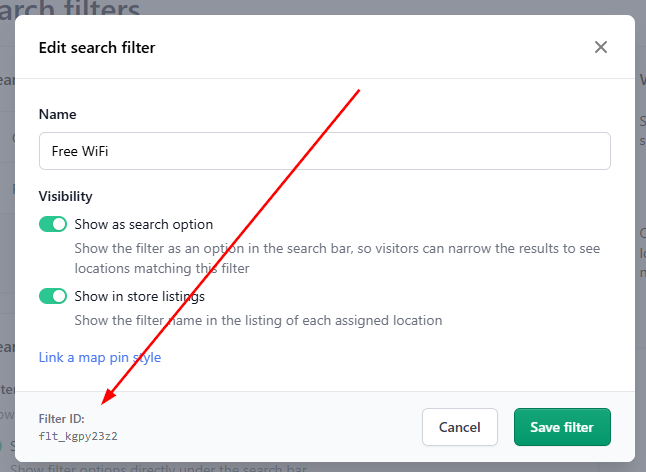
Tip: Don't see an ID there? If your map was created before July 2024, it may need a quick update. Please contact our support team and we'll update your account to enable this.
Combining a search with filters
You can use both options together in a single link — just separate the parameters with &:
https://example.com/store-locator?stockist-query=Paris&stockist-filters=flt_abc1234
Common questions
Do I need to set up anything special in my account?
Nope! These parameters work for all Stockist maps without any special setup. However, if you don't see the filter IDs in your dashboard, please contact us to enable this.
Will this work with any website platform?
Yes, these are standard URL parameters and they'll work no matter whether your site is on Shopify, WordPress, Squarespace, or any other hosting platform.
What happens if there aren't any matching results?
Your map will show the standard "No results found" message, which you can customize under Settings > Text & translations > [language] > No results found message.
Can I use this with ad campaigns on Google or Facebook?
Definitely! Any of the options here are a great fit. You can use the URL parameters to link to your existing map page without any special setup, or can build a customized landing page using the "always on" JavaScript options.