
Customizing your store locator: Built-in settings vs custom CSS
Stockist includes a range of built-in options for customizing the appearance of your store locator. For styling changes beyond what the built-in settings offer, you can also add custom CSS to fine-tune the look and feel. This article explains what you can adjust with each approach and where to find the relevant settings.
What you can change with built-in settings
You'll find these options under Settings > Appearance in your Stockist dashboard. No code is required — just choose your preferences and save.
- Feature color: Sets the main accent color used for buttons, store names, and links across your locator.
- Geolocation icon color: Sets the color for the "Use my location" button and the user's location icon. Available with the v2 layout.
- Map pins: Choose from several built-in pin styles, or use your own custom pin image. If you're using search filters, you can also assign different pin icons to different categories.
- Layout options: Position the results list on the left or right side of the map, and choose where the search bar appears (above the results list or above the entire locator).
- Map theme: Choose the color scheme of the map imagery on your locator. Google Maps supports hundreds of pre-built themes, and Mapbox supports a few standard options. Additionally, you can also create your own custom color scheme for either Google or Mapbox. Note: map theme options are available on the Plus plan and above.
- Desktop breakpoint: Controls when the locator switches between its mobile (stacked) and desktop (side-by-side) layouts. For example, if you set this to 700, the locator will switch to the desktop layout when at least 700 pixels of horizontal space is available on the page. Available with the v2 layout.
- Locator version: Choose between v1 (legacy) and v2 (current, recommended). v2 includes additional optional features like the "Use my location" button, a search radius dropdown, and a filter dropdown, as well as improved accessibility.
What's already built-in
Some styling happens automatically without any configuration:
- Fonts: The locator automatically inherits the main font from your website, so text in the locator should match the rest of your site.
- Primary text color: Text colors are also inherited from your site's existing styles.
What requires custom CSS
For styling changes beyond the built-in options, you can add custom CSS. Common examples include:
- Adjusting spacing, padding, or sizing of specific elements
- Styling individual elements (like buttons or the search bar) differently from the main feature color
- Modifying border styles or corner rounding
- Using a different font for certain elements (e.g. store names)
- Fine-tuning the layout for specific screen sizes
- Customizing filter label appearance
Where to add custom CSS
You can add custom CSS in your Stockist dashboard under Settings > Appearance > Advanced settings > Custom CSS.
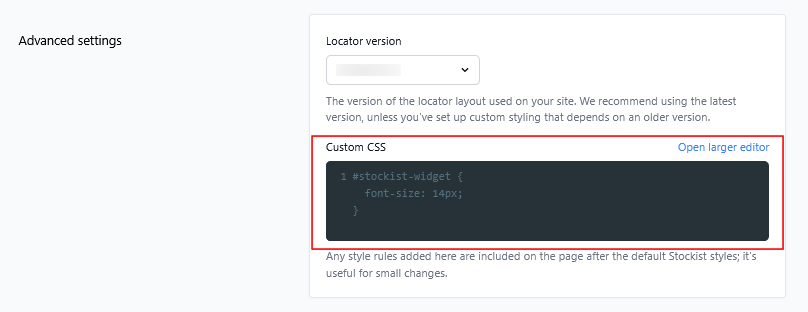
Changes take effect right away — if you don't see them immediately, try adding ?stockist-no-cache to the end of your store locator page's URL in your browser address bar to ensure you see updates more quickly.
Getting help with custom styling
If you'd like to make styling changes that require custom CSS, we're happy to help with moderate adjustments. When reaching out, it helps to include:
- A description of what you'd like to change
- A screenshot or reference example showing the look you're going for
- Your store locator page URL (and preview password, if any) so we can see your current setup
If you're working with a web developer or agency on your site and would like to make substantial changes to the layout or styling, this is often something they can assist with as well — Stockist's elements are marked with self-explanatory identifiers behind the scenes to make customization simple.
For more extensive redesigns that go beyond what CSS can achieve, there's also the option of using Stockist's API to build a fully custom locator layout while still using Stockist to manage your store data. This approach gives you complete control over the design but involves more development resources.
What's not customizable
There are a few aspects of the locator that can't be changed through settings or CSS:
- Map pin popups: Clicking a map pin always opens a popup directly on the pin. This can't be replaced with a different interaction style (like a slide-up panel).
- Core widget structure: The overall structure of the locator (search bar, results list, and map) is fixed, though you can adjust the positioning and sizing of these elements.
- Certain interactive behaviors: Some behaviors like how the map responds to clicking a listing in the sidebar are built into the widget and can't be modified.